> ## Documentation Index
> Fetch the complete documentation index at: https://manual.seahorse.dnotitia.ai/llms.txt
> Use this file to discover all available pages before exploring further.
> System Prompt 상세 — 생성된 프롬프트의 Selection Guides·Connected Tools 추가 세팅과 조회. 실제로 에이전트에 붙이기 전 완성 단계
# Prompt detail
# System Prompt 상세
**경로**: Console → **Agent Ops → System Prompts** → 목록에서 프롬프트 이름 클릭
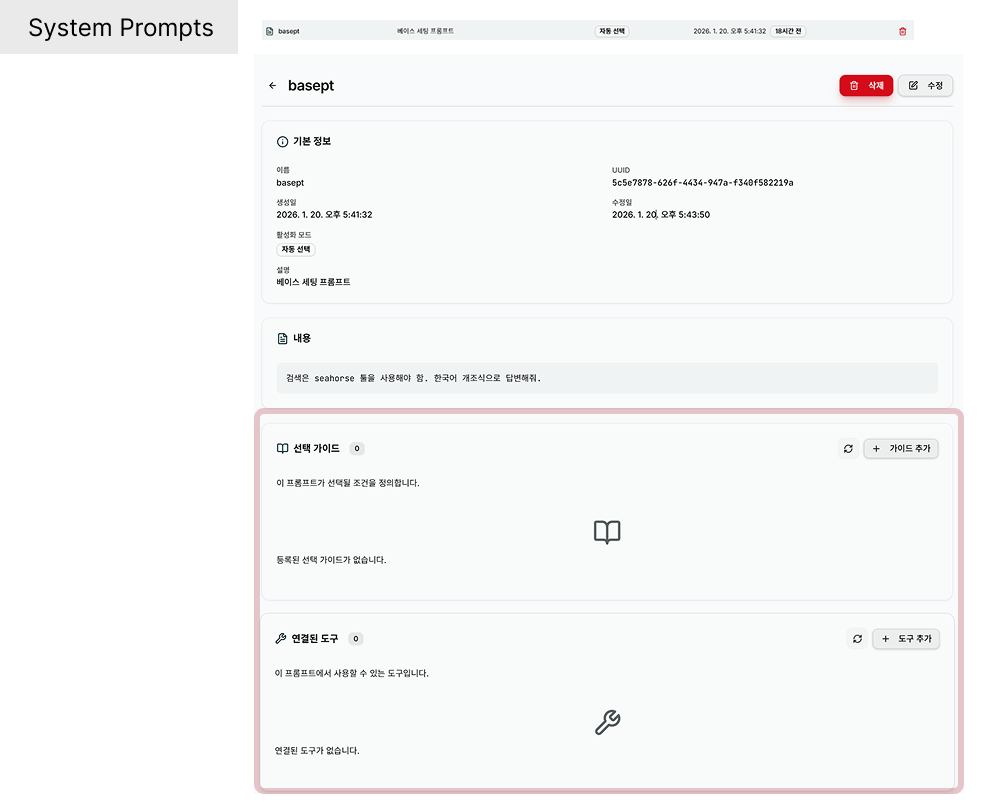 프롬프트 **생성 직후 진입해야 하는 페이지** 입니다. [생성 화면](/console/agent-ops/system-prompts/prompt-create) 에서는 기본 뼈대만 입력하고, 여기서 **Selection Guides · Connected Tools** 를 채워 프롬프트를 완성합니다.
## 전체 흐름
```
[생성] prompt-create.md
↓ Name · Description · Prompt Content · Activation Mode
[상세] 이 페이지 ← 지금
↓ Selection Guides · Connected Tools 추가
[에이전트 연결] Agent 상세 → System Prompts 팝업
↓ 다중 선택으로 바인딩
[운영] 대화에서 Auto Select 매칭·프롬프트 주입
```
## 조회 항목
생성 시 입력한 값이 그대로 표시됩니다. 편집은 [수정](/console/agent-ops/system-prompts/prompt-update) 으로.
| 필드 | 설명 |
| ------------------- | ------------------------ |
| **Name** | 프롬프트 이름 |
| **Description** | 용도 설명 |
| **Prompt Content** | 시스템 프롬프트 본문 (10 줄 이상 영역) |
| **Activation Mode** | `Auto Select` / `Manual` |
## 추가 설정 — Connected Tools
프롬프트 **생성 직후 진입해야 하는 페이지** 입니다. [생성 화면](/console/agent-ops/system-prompts/prompt-create) 에서는 기본 뼈대만 입력하고, 여기서 **Selection Guides · Connected Tools** 를 채워 프롬프트를 완성합니다.
## 전체 흐름
```
[생성] prompt-create.md
↓ Name · Description · Prompt Content · Activation Mode
[상세] 이 페이지 ← 지금
↓ Selection Guides · Connected Tools 추가
[에이전트 연결] Agent 상세 → System Prompts 팝업
↓ 다중 선택으로 바인딩
[운영] 대화에서 Auto Select 매칭·프롬프트 주입
```
## 조회 항목
생성 시 입력한 값이 그대로 표시됩니다. 편집은 [수정](/console/agent-ops/system-prompts/prompt-update) 으로.
| 필드 | 설명 |
| ------------------- | ------------------------ |
| **Name** | 프롬프트 이름 |
| **Description** | 용도 설명 |
| **Prompt Content** | 시스템 프롬프트 본문 (10 줄 이상 영역) |
| **Activation Mode** | `Auto Select` / `Manual` |
## 추가 설정 — Connected Tools
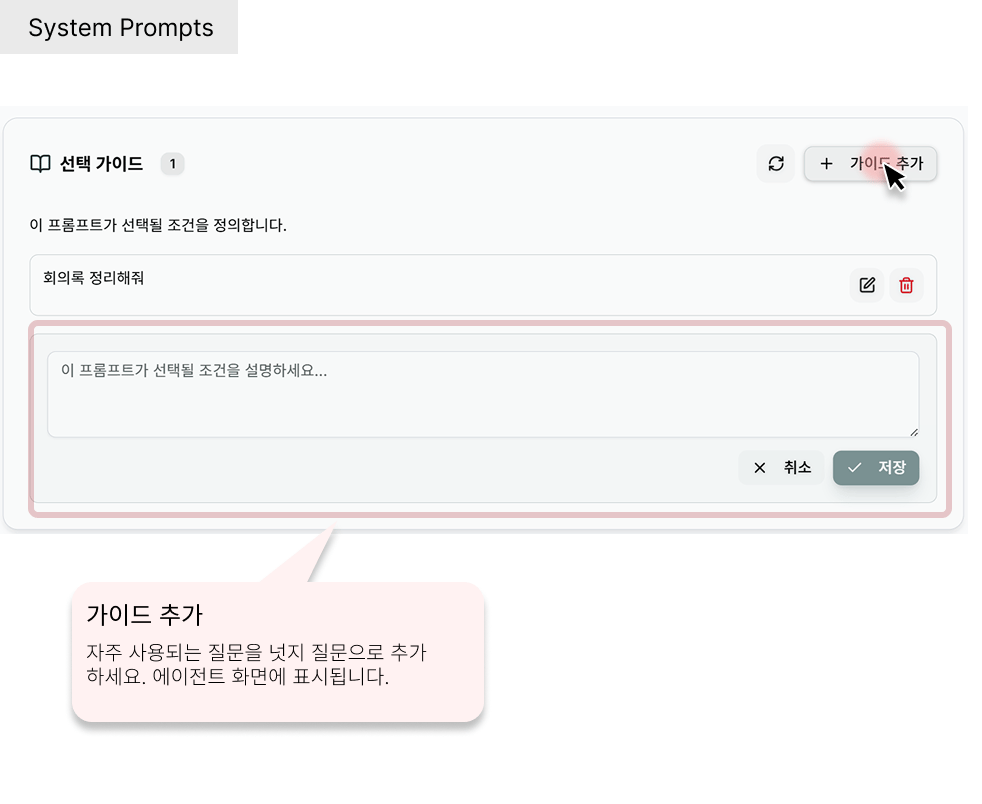 이 프롬프트가 활성화될 때 **함께 활성화될 MCP 도구 묶음** 을 체크박스 리스트로 선택합니다.
| 요소 | 설명 |
| ----- | ---------------------------------------------------------------------- |
| 도구 목록 | 현재 테넌트에서 등록된 MCP 도구 ([Tool Management](/console/agent-ops/agent-tool)) |
| 체크박스 | 이 프롬프트 기준으로 활성화할 도구 |
**의미** — 이 프롬프트가 Auto Select 로 매칭되거나 Manual 로 지정되면, 선택한 도구들이 **세션에 자동으로 올라옵니다**. 즉 "프롬프트 = 역할 + 허용 도구 패키지".
예) `법무 검토 프롬프트` + Connected Tools = `atlassian` · `temp-files` → 법무 사용자가 이 프롬프트 매칭 시 Jira 검색과 파일 조작만 허용되고 외부 전송 도구는 자동으로 꺼진 상태
## 추가 설정 — Selection Guides
이 프롬프트가 활성화될 때 **함께 활성화될 MCP 도구 묶음** 을 체크박스 리스트로 선택합니다.
| 요소 | 설명 |
| ----- | ---------------------------------------------------------------------- |
| 도구 목록 | 현재 테넌트에서 등록된 MCP 도구 ([Tool Management](/console/agent-ops/agent-tool)) |
| 체크박스 | 이 프롬프트 기준으로 활성화할 도구 |
**의미** — 이 프롬프트가 Auto Select 로 매칭되거나 Manual 로 지정되면, 선택한 도구들이 **세션에 자동으로 올라옵니다**. 즉 "프롬프트 = 역할 + 허용 도구 패키지".
예) `법무 검토 프롬프트` + Connected Tools = `atlassian` · `temp-files` → 법무 사용자가 이 프롬프트 매칭 시 Jira 검색과 파일 조작만 허용되고 외부 전송 도구는 자동으로 꺼진 상태
## 추가 설정 — Selection Guides
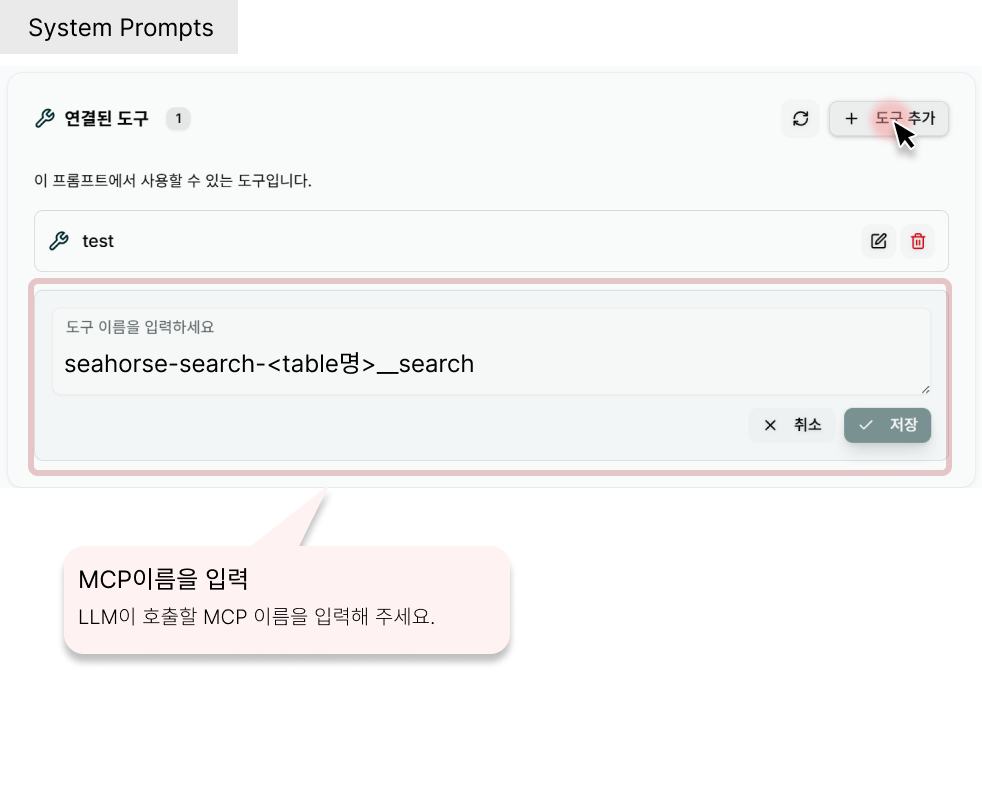 Activation Mode 가 **`Auto Select`** 일 때 에이전트가 **어떤 사용자 질의·상황에 이 프롬프트를 매칭할지** 명시합니다. 멀티라인 텍스트로 자유롭게 기술하거나, 특정 MCP 함수 호출을 트리거 키로 지정할 수 있습니다.
### MCP 함수 키 지정 형식
Selection Guides 는 MCP 서버의 **함수명을 기반으로 한 키** 를 입력해서, 해당 함수가 호출될 법한 질의에 이 프롬프트를 매칭시킵니다.
| MCP 타입 | ConfigMap 위치 | Key 형식 | 예시 |
| ------------- | ------------- | ------------------------- | -------------------------- |
| **Table MCP** | `mcp_servers` | `seahorse-search-{table}` | `seahorse-search-products` |
| **Tool MCP** | `mcp_servers` | `{tool}` 또는 `{tool}_{n}` | `github`, `github_1` |
| **RDB MCP** | `mcp_servers` | `rdb-{connection}` | `rdb-main-database` |
**키 이름 중복 처리 규칙**
* 처음 등록되는 값은 이름 그대로: `{tool}`
* 동일 이름이 이미 존재하면 순번 추가: `{tool}_1`, `{tool}_2`, …
* Table / Tool / RDB 전체에 걸쳐 중복 방지 적용
### Selection Guides 입력 형식
```
{Key}__{함수명}
```
* `__` (더블 언더스코어) **앞**: 위 표의 Key (예: `seahorse-search-products`)
* `__` **뒤**: MCP 가 노출하는 함수명 (예: `search_documents`)
**예시**
```
seahorse-search-products__search_documents
github__list_pull_requests
rdb-main-database__execute_query
```
자유 서술 Selection Guide 와 함수 키를 **섞어서** 쓸 수도 있습니다. 자세한 매칭 로직은 에이전트의 판단 모델에 달려 있으므로, **명확한 트리거 키 + 자연어 설명** 을 함께 두는 것이 안전합니다.
## 완성 체크리스트
이 페이지를 떠나기 전 확인:
* [ ] Prompt Content 에 **역할·범위·스타일·금칙·출력형식** 5 요소 포함 ([작성 가이드](/console/agent-ops/system-prompts#작성-가이드))
* [ ] Activation Mode 가 Auto Select 라면 **Selection Guides** 작성
* [ ] 이 프롬프트가 활성화될 때 필요한 **Connected Tools** 체크
* [ ] 이후 [Agent 상세 → System Prompts 팝업](/console/agent-ops/agent/agent-settings#system-prompts-시스템-프롬프트-연결) 에서 에이전트에 연결
## 동작 흐름
1. Connected Tools / Selection Guides 를 **추가·변경하려면** → [수정](/console/agent-ops/system-prompts/prompt-update) 화면 사용
2. 이 상세 화면은 **조회 중심** (변경 시 수정 페이지 경유)
3. 필요 없다면 → [삭제](/console/agent-ops/system-prompts/prompt-delete)
**프롬프트 내용·Tools·Guides 수정 시 연결된 모든 에이전트에 즉시 반영** 됩니다. 운영 중인 에이전트의 응답이 다음 세션부터 바뀔 수 있으니 **테스트 에이전트에서 먼저 검증** 후 적용하세요.
## 관련 문서
* [System Prompt 생성](/console/agent-ops/system-prompts/prompt-create) — 1단계
* [System Prompt 수정](/console/agent-ops/system-prompts/prompt-update) — Tools·Guides 추가/변경
* [System Prompt 삭제](/console/agent-ops/system-prompts/prompt-delete)
* [System Prompts 개요](/console/agent-ops/system-prompts) — 작성 가이드·Activation Mode
* [Agent 설정 → System Prompts 연결](/console/agent-ops/agent/agent-settings#system-prompts-시스템-프롬프트-연결)
Activation Mode 가 **`Auto Select`** 일 때 에이전트가 **어떤 사용자 질의·상황에 이 프롬프트를 매칭할지** 명시합니다. 멀티라인 텍스트로 자유롭게 기술하거나, 특정 MCP 함수 호출을 트리거 키로 지정할 수 있습니다.
### MCP 함수 키 지정 형식
Selection Guides 는 MCP 서버의 **함수명을 기반으로 한 키** 를 입력해서, 해당 함수가 호출될 법한 질의에 이 프롬프트를 매칭시킵니다.
| MCP 타입 | ConfigMap 위치 | Key 형식 | 예시 |
| ------------- | ------------- | ------------------------- | -------------------------- |
| **Table MCP** | `mcp_servers` | `seahorse-search-{table}` | `seahorse-search-products` |
| **Tool MCP** | `mcp_servers` | `{tool}` 또는 `{tool}_{n}` | `github`, `github_1` |
| **RDB MCP** | `mcp_servers` | `rdb-{connection}` | `rdb-main-database` |
**키 이름 중복 처리 규칙**
* 처음 등록되는 값은 이름 그대로: `{tool}`
* 동일 이름이 이미 존재하면 순번 추가: `{tool}_1`, `{tool}_2`, …
* Table / Tool / RDB 전체에 걸쳐 중복 방지 적용
### Selection Guides 입력 형식
```
{Key}__{함수명}
```
* `__` (더블 언더스코어) **앞**: 위 표의 Key (예: `seahorse-search-products`)
* `__` **뒤**: MCP 가 노출하는 함수명 (예: `search_documents`)
**예시**
```
seahorse-search-products__search_documents
github__list_pull_requests
rdb-main-database__execute_query
```
자유 서술 Selection Guide 와 함수 키를 **섞어서** 쓸 수도 있습니다. 자세한 매칭 로직은 에이전트의 판단 모델에 달려 있으므로, **명확한 트리거 키 + 자연어 설명** 을 함께 두는 것이 안전합니다.
## 완성 체크리스트
이 페이지를 떠나기 전 확인:
* [ ] Prompt Content 에 **역할·범위·스타일·금칙·출력형식** 5 요소 포함 ([작성 가이드](/console/agent-ops/system-prompts#작성-가이드))
* [ ] Activation Mode 가 Auto Select 라면 **Selection Guides** 작성
* [ ] 이 프롬프트가 활성화될 때 필요한 **Connected Tools** 체크
* [ ] 이후 [Agent 상세 → System Prompts 팝업](/console/agent-ops/agent/agent-settings#system-prompts-시스템-프롬프트-연결) 에서 에이전트에 연결
## 동작 흐름
1. Connected Tools / Selection Guides 를 **추가·변경하려면** → [수정](/console/agent-ops/system-prompts/prompt-update) 화면 사용
2. 이 상세 화면은 **조회 중심** (변경 시 수정 페이지 경유)
3. 필요 없다면 → [삭제](/console/agent-ops/system-prompts/prompt-delete)
**프롬프트 내용·Tools·Guides 수정 시 연결된 모든 에이전트에 즉시 반영** 됩니다. 운영 중인 에이전트의 응답이 다음 세션부터 바뀔 수 있으니 **테스트 에이전트에서 먼저 검증** 후 적용하세요.
## 관련 문서
* [System Prompt 생성](/console/agent-ops/system-prompts/prompt-create) — 1단계
* [System Prompt 수정](/console/agent-ops/system-prompts/prompt-update) — Tools·Guides 추가/변경
* [System Prompt 삭제](/console/agent-ops/system-prompts/prompt-delete)
* [System Prompts 개요](/console/agent-ops/system-prompts) — 작성 가이드·Activation Mode
* [Agent 설정 → System Prompts 연결](/console/agent-ops/agent/agent-settings#system-prompts-시스템-프롬프트-연결)