> ## Documentation Index
> Fetch the complete documentation index at: https://manual.seahorse.dnotitia.ai/llms.txt
> Use this file to discover all available pages before exploring further.
> Display Settings — 테마(DN White / DN Dark) 선택과 Reasoning·Tool 블록 표시·자동 숨김 설정
# Display settings
# Display Settings
**경로**: 좌측 사이드바 상단 **⋯ 메뉴** → **Settings** (Display)
`Configure block visibility settings and select your preferred theme.`
채팅 화면의 **테마** 와 **블록 표시** 방식을 개인 환경에 맞춰 설정합니다.
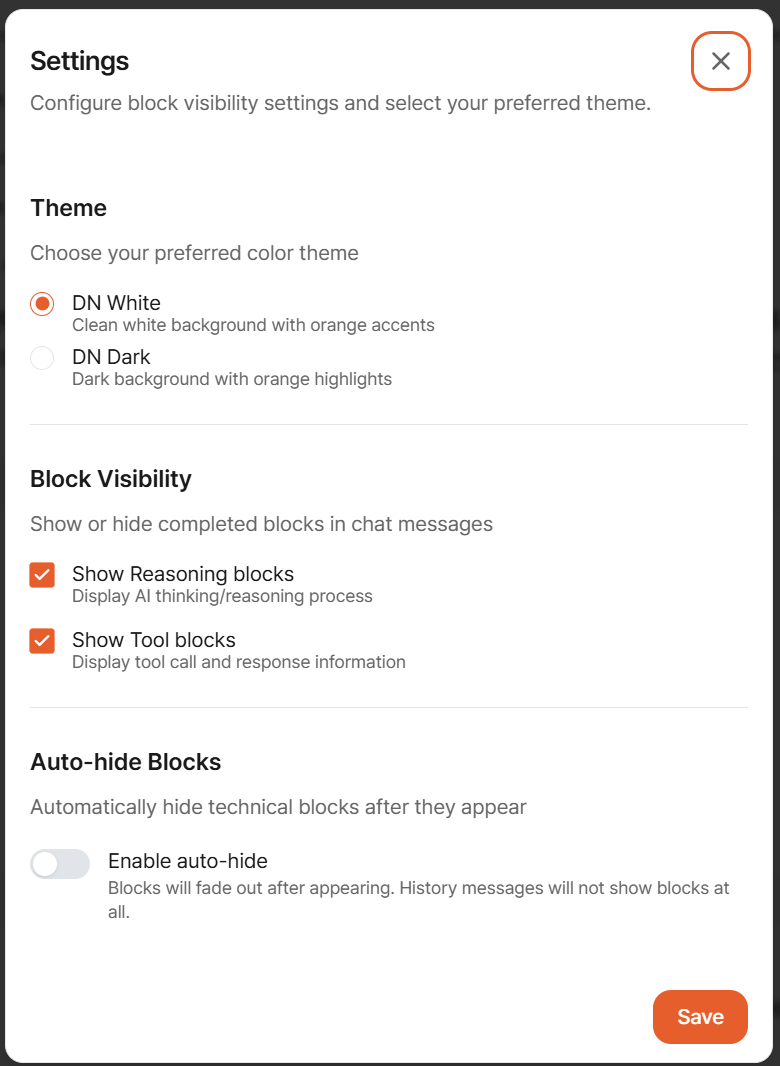 ## Theme
`Choose your preferred color theme`
| 테마 | 설명 |
| ------------ | ----------------------------------------------------- |
| **DN White** | `Clean white background with orange accents` — 라이트 모드 |
| **DN Dark** | `Dark background with orange highlights` — 다크 모드 |
테마 선택은 즉시 반영되며, 브라우저별로 저장됩니다.
## Block Visibility
`Show or hide completed blocks in chat messages`
LLM 응답 중 **Reasoning 블록**(사고 과정)과 **Tool 블록**(도구 호출·응답) 의 표시 여부를 토글합니다.
| 토글 | 설명 |
| ------------------------- | ----------------------------------------------------------------------- |
| **Show Reasoning blocks** | `Display AI thinking/reasoning process` — 모델의 내부 사고 흐름을 접을 수 있는 블록으로 표시 |
| **Show Tool blocks** | `Display tool call and response information` — MCP 도구 호출의 인자·반환값을 표시 |
**디버깅·학습 단계** 에서는 두 블록을 **모두 켜두는 것** 이 유용합니다. 모델이 왜 그런 답을 만들었는지, 어떤 도구를 호출했는지 추적할 수 있습니다. 일반 사용 시에는 아래 **자동 숨김** 으로 가독성과 투명성을 동시에 확보할 수 있습니다.
## Auto-hide Blocks
`Automatically hide technical blocks after they appear`
| 토글 | 동작 |
| -------------------- | ------------------------------------------------------------------- |
| **Enable auto-hide** | ON 시 Reasoning·Tool 블록이 **표시되었다가 서서히 사라짐**. 히스토리 메시지에는 처음부터 표시되지 않음 |
안내 문구: `Blocks will fade out after appearing. History messages will not show blocks at all.`
**Auto-hide 의 의도**: 실시간으로는 "어떻게 작업 중인지" 보이도록 두되, 대화가 쌓인 뒤에는 최종 답변만 깔끔히 남깁니다. 동료·고객에게 대화 공유 시 기술 디테일이 노출되지 않는 장점도 있습니다.
## 저장
**Save** 버튼 클릭으로 설정 반영. 현재 세션 및 이후 세션 모두에 적용.
## 운영 주의
* **Tool 블록 숨김 시 디버깅 어려움** — 도구 호출이 실패해도 사용자가 원인을 알기 어렵습니다. 장애 대응 시에는 잠시 켜서 확인.
* **Reasoning 블록은 모델 지원 여부에 따라 달라짐** — 일부 모델은 Reasoning 을 외부로 내보내지 않으므로 토글을 켜도 비어 있을 수 있습니다.
* **공유 화면(녹화·스크린샷)** 에 도구 호출 인자가 노출될 수 있으니 민감 데이터 처리 시 Auto-hide 활용.
## 관련 문서
* [Prompt Settings](/agent-chat/user-menu/prompt-settings) — 프롬프트·도구 조합
* [Memory Facts](/agent-chat/user-menu/memory-facts) — 장기 기억
* [Language Settings](/agent-chat/user-menu/language-settings) — 언어 선택
## Theme
`Choose your preferred color theme`
| 테마 | 설명 |
| ------------ | ----------------------------------------------------- |
| **DN White** | `Clean white background with orange accents` — 라이트 모드 |
| **DN Dark** | `Dark background with orange highlights` — 다크 모드 |
테마 선택은 즉시 반영되며, 브라우저별로 저장됩니다.
## Block Visibility
`Show or hide completed blocks in chat messages`
LLM 응답 중 **Reasoning 블록**(사고 과정)과 **Tool 블록**(도구 호출·응답) 의 표시 여부를 토글합니다.
| 토글 | 설명 |
| ------------------------- | ----------------------------------------------------------------------- |
| **Show Reasoning blocks** | `Display AI thinking/reasoning process` — 모델의 내부 사고 흐름을 접을 수 있는 블록으로 표시 |
| **Show Tool blocks** | `Display tool call and response information` — MCP 도구 호출의 인자·반환값을 표시 |
**디버깅·학습 단계** 에서는 두 블록을 **모두 켜두는 것** 이 유용합니다. 모델이 왜 그런 답을 만들었는지, 어떤 도구를 호출했는지 추적할 수 있습니다. 일반 사용 시에는 아래 **자동 숨김** 으로 가독성과 투명성을 동시에 확보할 수 있습니다.
## Auto-hide Blocks
`Automatically hide technical blocks after they appear`
| 토글 | 동작 |
| -------------------- | ------------------------------------------------------------------- |
| **Enable auto-hide** | ON 시 Reasoning·Tool 블록이 **표시되었다가 서서히 사라짐**. 히스토리 메시지에는 처음부터 표시되지 않음 |
안내 문구: `Blocks will fade out after appearing. History messages will not show blocks at all.`
**Auto-hide 의 의도**: 실시간으로는 "어떻게 작업 중인지" 보이도록 두되, 대화가 쌓인 뒤에는 최종 답변만 깔끔히 남깁니다. 동료·고객에게 대화 공유 시 기술 디테일이 노출되지 않는 장점도 있습니다.
## 저장
**Save** 버튼 클릭으로 설정 반영. 현재 세션 및 이후 세션 모두에 적용.
## 운영 주의
* **Tool 블록 숨김 시 디버깅 어려움** — 도구 호출이 실패해도 사용자가 원인을 알기 어렵습니다. 장애 대응 시에는 잠시 켜서 확인.
* **Reasoning 블록은 모델 지원 여부에 따라 달라짐** — 일부 모델은 Reasoning 을 외부로 내보내지 않으므로 토글을 켜도 비어 있을 수 있습니다.
* **공유 화면(녹화·스크린샷)** 에 도구 호출 인자가 노출될 수 있으니 민감 데이터 처리 시 Auto-hide 활용.
## 관련 문서
* [Prompt Settings](/agent-chat/user-menu/prompt-settings) — 프롬프트·도구 조합
* [Memory Facts](/agent-chat/user-menu/memory-facts) — 장기 기억
* [Language Settings](/agent-chat/user-menu/language-settings) — 언어 선택